theme.json in a classic WordPress theme: what it’s good for
There’s a common assumption that theme.json belongs to block themes. It doesn’t. A classic PHP theme with its own templates can still ship a theme.json, and it’s one of the cheapest wins you can add to a theme that uses the block editor for content.
This site is a classic theme. Templates are PHP, the header and footer are PHP, and every homepage section is a custom block. It still has a theme.json, and here’s what it does.
One colour palette, everywhere
The palette in theme.json shows up in the editor’s colour picker, and WordPress turns every entry into a CSS custom property:
{
	"version": 3,
	"settings": {
		"color": {
			"palette": [
				{ "slug": "ink", "color": "#16202e", "name": "Ink" },
				{ "slug": "accent", "color": "#047857", "name": "Accent" }
			],
			"custom": false,
			"customGradient": false,
			"defaultPalette": false
		}
	}
}
That gives you --wp--preset--color--accent in both the front end and the editor, plus utility classes like has-accent-color. Turning off custom and defaultPalette matters as much as adding colours: editors can only pick brand colours, so nobody publishes a lime green heading by accident.
Type and spacing presets
The same applies to font sizes and spacing. Define a short scale and the editor’s controls snap to it:
"typography": {
	"customFontSize": false,
	"fontSizes": [
		{ "slug": "small", "size": "0.9375rem", "name": "Small" },
		{ "slug": "large", "size": "clamp(1.25rem, 1rem + 1vw, 1.5rem)", "name": "Large" }
	]
}
Fluid values with clamp() work fine here. The result is fewer one-off sizes in post content, which is where design drift usually starts.
Content width in the editor
settings.layout.contentSize and wideSize tell the editor how wide content and wide-aligned blocks should be. Without them, the editor shows text at whatever width the admin screen allows, and authors have no idea how a post will actually look.
"layout": {
	"contentSize": "42rem",
	"wideSize": "72rem"
}
Match these to your front-end CSS and the editor becomes a reasonable preview.
What I don’t put in theme.json
In a classic theme I keep theme.json to settings and presets. I don’t move the whole design into styles, because the theme’s CSS already does that job and two sources of truth fight each other. The rule I follow: theme.json defines the options, CSS defines the design.
I also keep runtime values out of it. This site lets the owner choose one of nine colour themes in the admin. The palette in theme.json is filtered in PHP with wp_theme_json_data_theme, so the editor always shows the active colours:
add_filter( 'wp_theme_json_data_theme', function ( $theme_json ) {
	return $theme_json->update_with( array(
		'version'  => 3,
		'settings' => array(
			'color' => array( 'palette' => rp_editor_palette() ),
		),
	) );
} );
Checklist
- Set
versionto the current schema and add the$schemaURL for autocomplete in your editor. - Define palette, font sizes and spacing; turn off the custom and default options.
- Set
contentSizeandwideSizeto match your CSS. - Leave the visual design in your stylesheet.
If you’re deciding how to build the blocks themselves, I compared the two main approaches in SCF blocks vs React blocks.
Keep reading
A WordPress security checklist for small sites
Most WordPress sites are compromised through the same few gaps. This is the checklist I run on small sites, roughly in order of impact.
Building an SCF block with block.json, step by step
A complete walkthrough of a Secure Custom Fields block: block.json, a field group, a PHP render template and a preview that matches the front end.
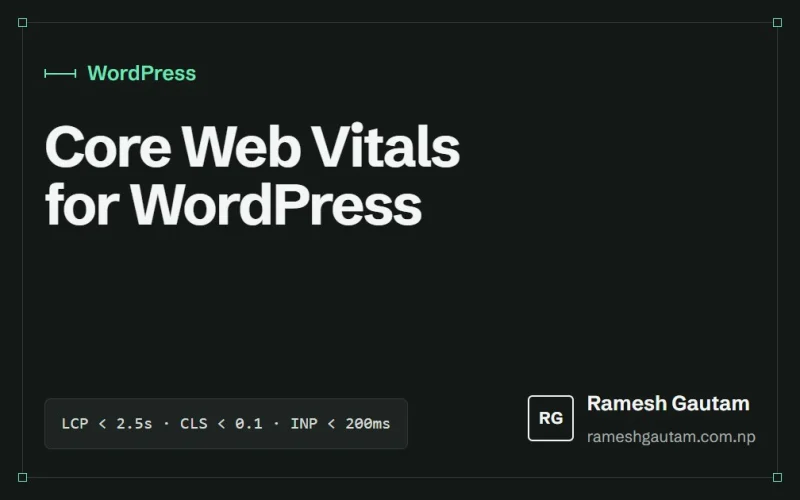
Core Web Vitals for WordPress: fixing LCP, CLS and INP
Most slow WordPress sites fail Core Web Vitals for the same handful of reasons. Here's what each metric measures and the fixes that actually move it.